


Classic PC Theme
5.05.00 Reviews
App Specs
- Version
- 5.2.959
- Updated On
- License
- Free
- Downloads
- 10,000+
- Developer
- AnySoftKeyboard
- Categories
- Libraries & Demo
- Platform
- Android
Screenshots
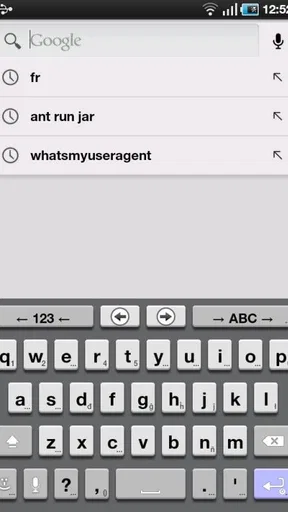
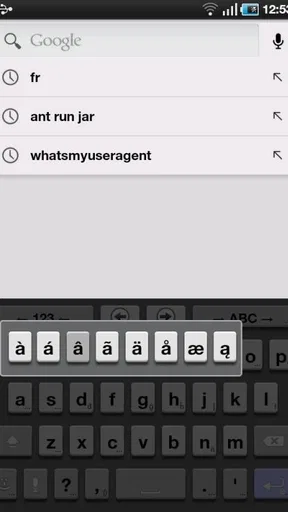
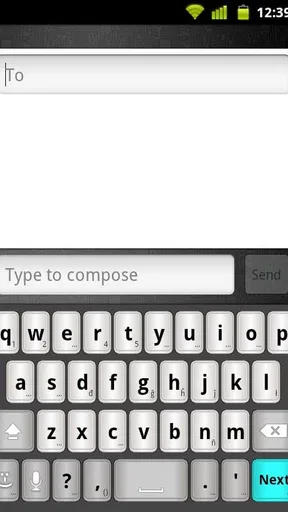
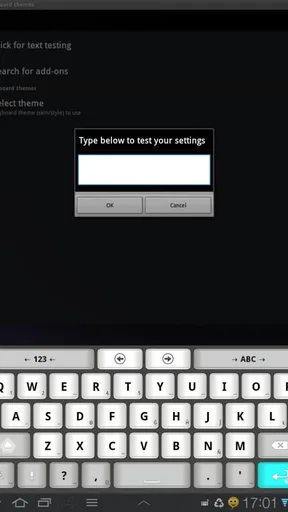
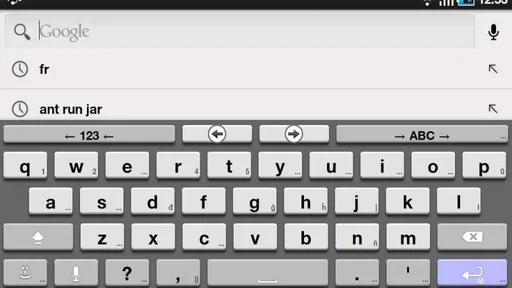
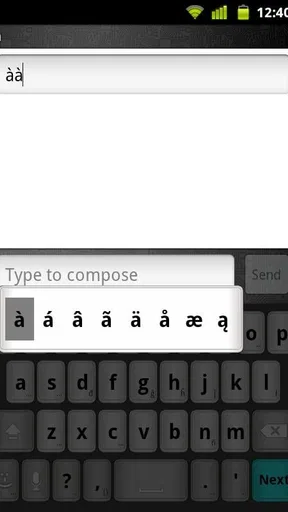
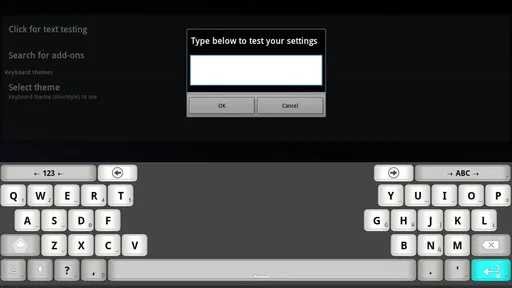
 Analysis by AppCompare
If you still enjoy the look and feel of a traditional computer keyboard, Classic PC Theme is a small but surprisingly focused way to change how AnySoftKeyboard looks. I tried it with the expectation that it would be a complete keyboard replacement, but that is not what it is. It is a visual theme made for AnySoftKeyboard, and that distinction matters before you install it. The app is best understood as a lightweight customization add-on for people who already use, or are willing to use, that keyboard.
My first impression was simple: this theme is aimed at familiarity rather than decoration. Instead of colorful effects or a modern glassy appearance, it gives the keyboard an old-school PC-inspired presentation. That makes it appealing if you prefer clear, conventional keys and a less fashionable, more functional look. It is also free, rated for Everyone, and belongs to the Libraries & Demo section, which fits its role as a compact demonstration and customization component rather than a standalone productivity tool.
What to decide before installing it
The most important question is not whether the theme looks good in screenshots. It is whether you want your phone keyboard to resemble a classic desktop keyboard and whether AnySoftKeyboard is already part of your routine. If the answer to both is yes, this is an easy experiment. If you are looking for a new keyboard with its own typing engine, language tools, gesture system, or built-in customization suite, this package is probably too narrow.
I would also consider how often you type on your phone. Someone who writes messages, notes, emails, or search queries throughout the day will notice the visual change more than someone who mostly taps short replies. A theme cannot improve every aspect of typing, but it can make the keyboard feel more familiar. For me, that familiarity was most useful when switching between a physical computer and a phone: the screen keyboard felt less like a separate interface and more like a compact version of the one I already understood.
Compatibility is another practical checkpoint. Classic PC Theme is designed specifically for AnySoftKeyboard, so installing it without that keyboard does not make it a universal skin for every keyboard app on the device. This is the first trade-off to understand. The theme itself is lightweight in purpose, but it depends on the host keyboard to be useful. If your current keyboard is Gboard, SwiftKey, or another alternative and you are happy with it, changing to AnySoftKeyboard just to use this appearance may be more work than the visual result is worth.
The app comes from AnySoftKeyboard, the same developer associated with the keyboard it supports. It was released on March 4, 2012, and its current version is 5.2.959. Those details suggest a long-running, focused add-on rather than a newly designed visual package chasing current interface trends. I see that as both a strength and a warning: its appeal is consistency and simplicity, not a modern collection of animated flourishes.
How the classic appearance changes daily typing
The old-school presentation works best when you want each key to feel visually separate. On a small phone display, that can be more comfortable than a highly minimal design where neighboring keys blend together. I found the effect especially useful when typing quickly with one thumb, because the traditional key treatment gave me a clearer visual rhythm. It did not turn inaccurate typing into accurate typing, but it made the keyboard easier to read at a glance.
Worth Reading Before You Choose

EA SPORTS FC Mobile 26 Is a Bigger Football Game, but It Takes Time

Flipboard Shows What News Apps Must Do Beyond the Feed

Switching to Android Auto Means Rethinking Your Driving Routine

Google Calendar Makes a Crowded Week Easier to Manage

Ludo King Makes the Most of the Minutes Between Plans

Baby Panda World Brings Quick Play to Modern Phones, but Its Game Library Feels Busy
That benefit depends on your eyes and your screen. A classic computer-style theme may feel reassuring to one person and dated to another. If you prefer dark, edge-to-edge interfaces or a keyboard that disappears behind the text field, this look may seem too prominent. The theme is making a deliberate stylistic choice, so there is no point installing it if your goal is an invisible keyboard.
One useful way to judge it is to test several real tasks instead of looking at the keyboard for a few seconds. I used it for a longer message, a short search, and a note containing punctuation. The longer message showed whether the visual style remained comfortable over time; the search showed whether the keys were easy to spot when typing quickly; and the note revealed whether the traditional layout felt natural when moving between letters and symbols. This kind of test is more revealing than deciding based on nostalgia alone.
What this app does well for AnySoftKeyboard users
The strongest point is focus. Classic PC Theme does not try to become a second keyboard or bury the user under settings. It exists to alter the appearance of AnySoftKeyboard toward a familiar desktop-inspired style. That narrow purpose makes the decision straightforward: if you want this look, it is relevant; if you do not, there is little reason to keep it installed.
I also like that the theme can serve a practical accessibility preference without claiming to be an accessibility tool. Some people distinguish keys more easily when the layout resembles a physical keyboard. Others simply find conventional key shapes less distracting than decorative designs. The result will vary with display size, brightness, and personal vision, but the old-school approach gives those users a clear alternative to ultra-flat themes.
Another strength is that it can be useful in a shared-device situation. Imagine a family tablet used for occasional writing, where one person is comfortable with a classic computer appearance and another prefers a more contemporary keyboard. A theme like this offers a quick way to make AnySoftKeyboard feel less unfamiliar without replacing the whole device setup. The important limitation is that the change belongs to the keyboard environment, not to every text field as an independent universal layer.
The app has attracted a 5.0 average from 209 ratings, with 5 written reviews, and it has reached over 10 thousand installs. I would treat those figures as signs of a small but very positive audience, not as proof that the design suits everyone. A specialized theme naturally appeals most to people who are already searching for this particular visual direction.
Installation and the real switching cost
The cost of switching is not financial because the app is free. The more meaningful cost is setup time and habit. If AnySoftKeyboard is already installed and active, trying the theme should be relatively painless: install the theme, open the host keyboard’s theme or appearance controls, select the classic PC option, and type for a while before deciding. The exact labels can vary with the host keyboard setup, so I would look for the appearance or theme area rather than expecting the add-on to replace the keyboard automatically.
If AnySoftKeyboard is not your current keyboard, the decision is larger. You may need to install and configure the keyboard, choose your languages, adjust its behavior, and then apply the visual theme. That can be worthwhile if the keyboard itself matches your needs, but it is excessive if you only want a different color or key shape. In that situation, the built-in themes of your existing keyboard are usually the more efficient route.
I recommend taking a screenshot of your current keyboard settings before experimenting, especially if you rely on a particular layout or language arrangement. A theme should not require a complete reset, but recording your preferred setup makes it easier to return to what you had. This is a small habit that saves frustration when testing keyboard add-ons, because keyboard changes can affect a device-wide typing routine rather than one isolated app.
It is also worth checking the age of the phone before installing. The app requires Android 6.0 or newer, so it is not intended for very old Android devices below that level. On a supported phone, the package’s narrow purpose should make it easy to evaluate. I would install it, apply it, and then test it in the apps where I type most often instead of assuming that a good appearance in the keyboard settings will automatically feel good everywhere.
Where other keyboard choices may fit better
Classic PC Theme is not competing with full keyboard apps on equal terms. A complete keyboard such as Gboard or SwiftKey is generally the better choice for someone who wants a broad package of typing assistance and a polished customization system in one place. I am not assigning specific features or performance claims to those alternatives here; the basic difference is that they are complete keyboard products, while this is a theme add-on for AnySoftKeyboard.
There is also a different kind of alternative: another AnySoftKeyboard theme. That is the better direction if you like the host keyboard but want to compare a modern, colorful, high-contrast, or minimalist appearance. Choosing among themes is less disruptive than changing keyboard platforms, because you keep the same underlying keyboard environment while changing its visual personality.
For users who type in several languages, the host keyboard’s language support and layout behavior should come before the theme. A beautiful keyboard is not useful if changing languages feels awkward or if your preferred arrangement is unavailable. Classic PC Theme can improve the look of a suitable AnySoftKeyboard setup, but it cannot compensate for a mismatch between the keyboard’s core behavior and your writing habits.
Gamers and people who use a phone mostly for short taps may not gain much from it. The classic appearance is most noticeable during regular text entry. If your priority is voice input, swipe typing, predictive suggestions, or a keyboard that adapts strongly to your personal vocabulary, investigate the main keyboard first. The theme should be the finishing touch, not the reason to ignore the tools you actually use.
Three practical ways to get more from it
First, judge the theme with the keyboard at the size you normally use. Enlarging keys temporarily can make almost any design appear easier to read, while shrinking them can make a comfortable theme seem cramped. Apply your usual keyboard height and test a normal message. The classic look has the most value when its key separation remains clear within your everyday layout rather than only in an ideal configuration.
Second, compare it during both bright and dim conditions. A design that feels pleasantly clear in daylight may become visually heavy at night, while a subdued theme may disappear in a bright room. I would not decide after one quick session. Use it during the times you normally type, because the point is to reduce friction across real situations, not to win a visual comparison on a settings screen.
Third, keep the theme separate from your judgment of AnySoftKeyboard itself. If the keyboard’s predictions, language layout, or controls do not suit you, changing the appearance will not solve that problem. Conversely, if you like AnySoftKeyboard but find its default presentation uninspiring, this add-on may be exactly the small adjustment you need. Separating those two decisions makes troubleshooting much easier.
A fourth useful test is to switch back temporarily after a day or two. Notice whether you miss the classic key treatment or whether the difference fades immediately. That reversal test is more honest than relying on the first impression. A theme is successful when it improves comfort or confidence enough that returning to the default feels less natural, not merely when it looks distinctive for a few minutes.
Who should install it, and who should skip it?
I would recommend Classic PC Theme to an AnySoftKeyboard user who wants a conventional computer-like appearance, clearer visual key boundaries, and a free way to personalize the keyboard without searching through a large customization package. It is especially suitable for people who enjoy older desktop interfaces, prefer restrained design, or feel more comfortable when on-screen controls resemble physical keys.
I would also consider it for someone helping a relative become comfortable with phone typing. The familiar appearance may lower the initial learning barrier, although the person should still test the keyboard’s size and contrast for themselves. The theme is not a substitute for larger text, device accessibility settings, or a different input method, but it can be one small part of making the keyboard feel less foreign.
I would skip it if you do not use AnySoftKeyboard, if you want a complete keyboard rather than a visual add-on, or if you prefer a sleek interface that keeps keys visually understated. I would also skip it if you are unwilling to spend a little time testing a new keyboard environment. Free installation does not remove the habit cost, and the theme cannot justify changing a keyboard that already works perfectly for you.
My recommendation after using the theme
The best reason to choose Classic PC Theme is not nostalgia alone; it is the practical comfort of a familiar keyboard appearance inside AnySoftKeyboard. I found it more convincing as a focused usability preference than as a dramatic transformation. It does not need a long feature list because its purpose is narrow and clear: give AnySoftKeyboard an old-school PC character.
The app’s age and small audience do not bother me in this particular case. A theme does not need constant novelty if the visual idea remains useful. What matters is whether the design feels readable and comfortable on your device. The 5.0 average is encouraging, but I would still treat your own typing test as more important than the rating because visual preferences are unusually personal.
For an existing AnySoftKeyboard user, the decision is easy: it is free, the age rating is Everyone, and the theme can be tried without committing to a new paid service. For someone using another keyboard, I would first ask whether the classic appearance is important enough to justify changing keyboards. If the answer is no, stay with the keyboard you already know and use its own appearance options.
Overall, I see Classic PC Theme as a precise recommendation rather than a universal one. It wins when you want a traditional PC-inspired look and already value AnySoftKeyboard. It loses when you need a full keyboard platform, extensive modern customization, or a seamless switch with no setup. If that distinction matches your situation, this small add-on is worth trying; if not, a complete keyboard with built-in themes will likely be the better fit.
Pros
- Recreates the familiar classic Windows desktop look on mobile devices.
- Lightweight design should run smoothly on many older phones.
- Simple layout makes menus and shortcuts easy to recognize.
- Useful for nostalgia
- themed screenshots
- or a retro-style setup.
- Offers a distinctive alternative to modern minimalist interfaces.
Cons
- May feel cramped on smaller screens due to the desktop-style layout.
- Some visual elements may not match current Android or iOS conventions.
- Limited practical value if you prefer modern
- touch-focused interfaces.
- Retro graphics can look dated on high-resolution displays.
- Theme behavior may vary depending on the device and operating system.
FAQs for Classic PC Theme
What is Classic PC Theme, and what does it do?
Classic PC Theme is an Android customization app designed to give your phone a nostalgic desktop-style appearance. It can add classic computer-inspired wallpapers, icons, widgets, colors, and interface elements to your home screen. The exact result depends on your launcher and device version, so it is best viewed as a visual theme rather than a complete replacement for Android.
Is Classic PC Theme compatible with every Android phone?
Compatibility can vary between manufacturers, Android versions, screen sizes, and installed launchers. On some phones, the theme may apply directly through the app, while others may require a compatible launcher or additional customization settings. Before downloading, check the app’s Google Play listing for supported versions and read recent user reviews, especially if your device uses a heavily modified interface.
Does Classic PC Theme change the phone’s entire operating system?
No. Classic PC Theme generally changes the visual appearance of supported areas, such as the home screen, wallpaper, icons, widgets, or launcher layout. It does not turn Android into a full desktop operating system and will not replace system menus, notification panels, or every application. Some elements may remain in the phone manufacturer’s original style.
Does Classic PC Theme require special permissions or affect privacy?
The permissions requested depend on the features included in the specific version of the app. A theme may need access to wallpapers, storage, or launcher-related functions, while interactive widgets could request additional permissions. Review the permission list before installation and avoid granting access that seems unrelated to customization. Downloading from the official store also reduces the risk of modified files.
Is Classic PC Theme free to download and use?
Classic PC Theme may be available as a free download, but some versions can include advertisements, optional purchases, or extra customization packs. The basic theme may be usable without payment, while premium visuals or ad removal could require a purchase. Check the store page for current pricing and in-app purchase details before installing, since availability and conditions can change.


